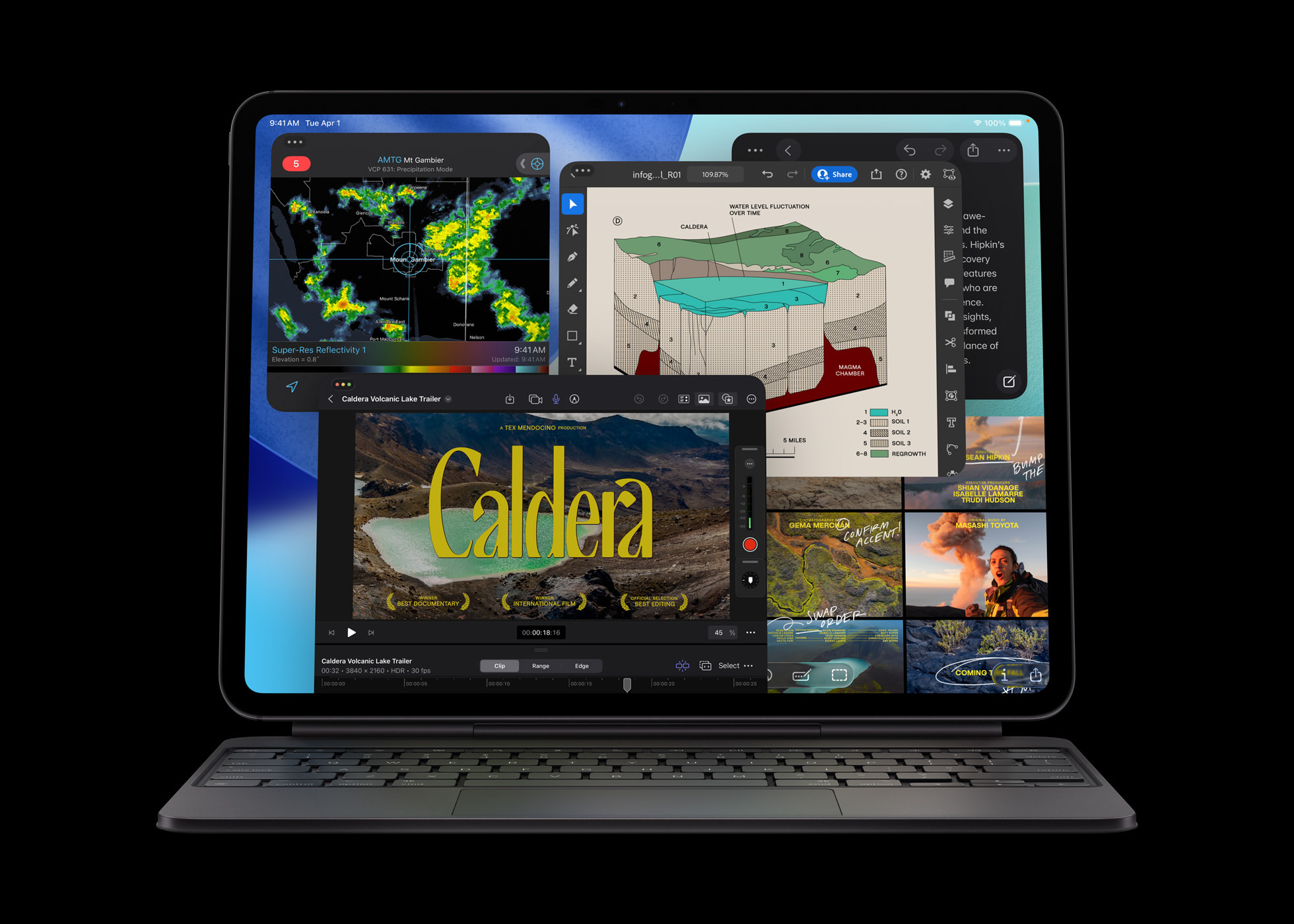
Apple today introduced the new iPad Pro featuring the i ncredibly powerful M5 chip. M5 unlocks the most advanced iPad experience ever, pac...
Twitter brings the Voice Tweets on iOS Devices
Twitter is where people go to talk about what’s happening using texts, photos, videos, and gifs. But sometimes 280 characters aren’t enough...
Twitter MENA launches Hala bil Gamers - the First Arabic esports Show
Twitter and gaming platform Millenium Arabia has announced the launch of the first Arabic esports series, Hala bil Gamers “هلا_بالجيمرز#...
Twitter ask User Inputs for New Rule to Fight Synthetic and Manipulated Media
When people come to Twitter to see what’s happening in the world, Twitter wants them to have context about the content they’re seeing and e...
Twitter Unveils the Official List of Ramadan Hashtags and Emojis
The holy month of Ramadan is starting from tomorrow and to celebrate this moment Twitter has launched three new emojis dedicated to the mont...
Twitter Expands Premium Video Content in the Middle East and North Africa with over 16 Partnerships
Twitter has unveiled more than 16 premium video content collaborations across sports, entertainment and news at its first TwitterFronts e...
Twitter MENA Adds New Payment Method for SMB to Launch Arabic Campaigns
Considering the growth of active small and medium-sized (SMB) advertiser base in the Middle East region, Twitter MENA has launched its self...
Twitter Adds Live Broadcast for Android and iOS Apps
Live video broadcast is very popular these days. Many popular social media sites and apps like Facebook, Snapchat, YouTube etc. are having t...
Twitter adds GIF Search and Video Messaging in Direct Messages
Internet and social media just love the GIFs. When the Google Plus integrated the GIF capability, it was a big hit and still people just l...
LG Makes Fun of Samsung on Twitter, Boasts its V10 Smartphone
It is getting pretty common to see brands making fun of other brands in their advertisements and recently there were few moments when brands...
HOW TO : Check the Performance and Engagement of Your Every Twitter Tweet
Twitter is one of the most popular social networking site and a great medium to reach to wide audience. Twitter already provides stat like h...
HOW TO : Find How Many "Egg" Twitter Users are Following You
If you are a Twitter user , you should be knowing about the default “Egg” profile picture on Twitter. This is what every user gets right aft...
HOW TO : Delete All Twitter Tweets, ReTweets and Hashtags in One Click
Twitter is one of the busiest social network with receiving thousands of tweets every second. If you are an active Twitter user you should b...
How to Use Twitter Search Like a Pro
If you are a Twitter user then, you should be knowing that Twitter is always full of noise, specially if you are following lots of people. T...

How to Increase Your Twitter Followers Easily in 8 Simple Steps (Infographic)
Twitter boasts close to 650,000,000 active users who are collectively responsible for sending approximately half a billion tweets every si...
Top 10 Twitter Clients for Android Smartphone
Currently there being a load of Twitter clients available on the Google Play Store it becomes difficult for a newbie to choose which of the Twitter client for android suits his device the best, so here i bring to you the 10 best Twitter clients for Android.
10 Best Twitter Clients for Android Smartphone
1. Tweetcaster Pro for Twitter
This is an ultimate Twitter client and is used by many because of its really cool UI plus its many features which makes tweeting a lot more easy and fun. Its interface is very nice and clean, probably the best out there, and you also get many themes to choose from. This app is so popular that it has also been reviewed by the guys at CNET.
Some of the features in this app are Speak to Tweet, manage multiple Twitter accounts, post to twitter and Facebook simultaneously, schedule your tweets, read it later service, Twitlonger service to tweet long tweets, and Smartlists.
2. Ubersocial for Twitter
Ubersocial is another Twitter client which also has a balanced featureset offering a savvy UI for its users and also giving you access to tweeting elements which you will not get in any other Twitter client.The highlights of this app are inner circles which is similar to Smartlists found in Tweetcaster, mute users and certain hashtags, cross posting to Facebook and Twitter, customize menus (in short make your own ubermenu), livepreview which is a small browser built into the app so that you can view links, photos and videos without leaving the app, shrink links, tweet longer, etc.
3. Plume Premium for Twitter aka Touiteur
Plume is a very simple Twitter client and very fast too. It was first known as Touiteur but was later changed to Plume. I currently use Plume Premium because it is quite quick in pulling tweets and as i have a quite poor data connection, it becomes the perfect app for me. The UI is very gorgeous and you also get the option to colorize tweets from different users so the app looks very colorful.Plume also has many other features (and rather even more), you would look for in a Twitter client such as internal browser, mute users, manage multiple accounts, pull to refresh, autocomplete usernames, swipe to scroll, bit.ly support to tweet longer, geotagging feature, etc.
4. Seesmic
Seesmic offers you to manage both Twitter and Facebook accounts simultaneously, if you are a pro user, you will find this app very helpful. It has a very cute UI (red and white), and I really like the koala bear icon. You can see both your Twitter feed and Facebook feed, and simultaneously manage both the accounts. Add a status on Facebook or tweet on Twitter, Seesmic handles the tasks really well without being a memory hogger.
In addition you also get the advanced tweeting features such as tweet longer service, url shortener, share photos and videos, preview pics, autocomplete usernames, geotagging and retweet with comment.
Another unique feature about this app is you can directly create a shortcut on your homescreen to jump to a specific tab such you can create a shortcut to a Twitter list, Facebook page, etc.
5. TweetDeck
Tweetdeck manages more than your Twitter and Facebook accounts, you can also handle Google Buzz and Foursquare account. There is no other Twitter client which gives you such flexibility in managing your Columns like Tweetdeck does. You can add, delete, move any column you want very easily. The refresh feature on Tweetdeck needs a little tuning but apart from that it is a full featured Twitter and Facebook app.Geotagging, adding pictures to tweets, awesome UI, and widget support is what makes Tweetdeck really stand out of the crowd.
6. HootSuite
Hootsuite also allows you to control multiple social networks, namely Twitter, Facebook, LinkedIn and Foursquare. This is also a very neat social client, perhaps recommended if you are a social media person and a power user who needs to manage multiple accounts from a single app.You can schedule your tweets, receive notifications and access your Twitter stats such as total clicks and impressions on a tweet, and swipe to scroll are other major features of this app.
Also Check : Twitter Wap Clients : A Complete List
7. Twidroyd
Average in looks but powerful in features. Twidroyd is popular among many, and this Twitter client gives you all the necessary functions for tweeting. Tweet longer, URL shortener, manage multiple Twitter accounts, Twitter trends, smart lists, preview pics are some of the highlights of this app.
Wait a minute, and best of all no ads, that's right and its completely free as well. There are very few apps these days which have no ads but still are free, perhaps we should thank such developers, shouldn't we?
8. Twicca
Twicca is yet another Twitter client for Android. Sleek UI, advanced features and the option to install feature specific plugins. Twicca is nearly the complete Twitter client you could get. It has numerous features and plugins for Twicca are available on the fly. Some of the many plugins include Twitpic plugin for Twicca, translate plugin, highlight to search plugin, draft plugin, etc.Its easy, you decide which functionality you want in your Twitter client and trash the rest. Only con is, it is a little bit slow on pulling tweets, apart from that i would personally recommend this app for you.
9. Twitter
How can we forget the official Twitter client for Android? Real time notifications, retweet with comment, trending topics and twitter's very own UI, what more could you want? Regarded as certainly the best client for an average Twitter user this app is hard to resist.But there are a few other cons as well, no twitlonger service, no scheduler or url shortener and many other features are missing in this app. So its really upto you to decide if you want additional tweeting features or are satisfied with the features the official Twitter app has to offer you!
10. Dabr
I heard about this app from one of my friend. Ok in the UI, not that great but leaves a very small memory footprint. This app is for users who just want the simple tweeting features and nothing else. Dabr is fast and very basic, limited features and a very light app, just 108kb in size.I guess its upto you to decide which Twitter client is best for your tastes, a balance of UI and features then I would say to go for Tweetcaster, Ubersocial or Plume. If you want to manage multiple social accounts then go for Seesmic, Tweetdeck or Hootsuite and if you want access to extraneous set of tweeting features then I had to say Twidroyd or Twicca.
If you are an average tweeter, who wants simple and basic level features then better go for Twitter or Dabr.
Hope this article was useful to you. Please make your comments as your personal opinions are very valuable to us. Thanks!
Written by Gautam Doddamani who blogs at his official site REVTHATUP.com and is a technology enthusiast. In his past time he loves to code and also test out new custom ROMs on his Droid. By the way he tweets a lot too, follow him on twitter Crysislevel to get to know the guy.
I don't know, one of the many reasons why we buy an Android smartphone is because we can keep in touch with our Twitter and Facebook f...
HOW TO : Mute A Twitter User and Hide their Tweets from Timeline Without Unfollowing Them
There are few nice Twitter clients which are offering the “Mute” feature since a long time. Using this “Mute” feature you can mute the tweets of a particular user from your Twitter Timeline without unfollowing that user. It is really helpful if you do not want to unfollow a Twitter user but also do not want to see that person’s tweets in your timeline for some reason.
And finally Twitter included the same feature silently in its interface too. So now you can easily remove a Twitter user’s tweet from your timeline without unfollowing them. It will surely help in getting more useful tweets of your interest. But there are few points which you need to keep in mind while muting a Twitter user.
- Muted Twitter users can still follow you and interact with your tweets.
- You can mute Twitter users without unfollowing them.
- You can also mute a user you do not follow.
- All @ replies and @ mentions from muted users you follow will still appear in your Notifications tab.
- Muted users can still send you a direct message if you follow them
- If you mute a Twitter user, their previous Tweets will still be displayed; only their Tweets from the moment you muted them will be hidden.
Just follow the instructions given below on how to mute tweets of a Twitter user without unfollowing them and feel free to share your views about this new Twitter feature in the Comments section.
HOW TO : Mute A Twitter User and Hide their Tweets from Timeline
1. Go to Twitter.com and then click on the “Home” tab to go to your Twitter timeline to select a user whose tweets you would like to mute.
2. Now, click on the “More” link on any of that user’s tweet to show more option available.
3. From the options shown in the drop-down menu, click on the “Mute @TwitterUsername” option to mute that user.
4. You will also see a confirmation message saying “You will no longer receive Tweets from @TwitterUsername in your Timeline”.
5. Or you can just directly go to that person’s Twitter profile whose tweets you want to mute. After opening the profile, click on the gear icon as shown in the image.
6. From the options available, just click on the “Mute @TwitterUsername” option to hide tweets of that user from your timeline.
To “Unmute” a Twitter user, just follow the same steps and click on the “Unmute @TwitterUsername” option to get their tweets again in your timeline.
Twitter is a great social networking site and having lost of nice features. But one thing people always complain about is that Twitter is ve...
What Are Twitter Hashtags and How to Use Them to Get Maximum Response (Infographic)
One of the thing which Twitter made really popular is Hashtags. Hashtags are so popular now that even other major social media sites like Facebook, Google Plus, Instagram etc followed the footsteps of Twitter and included the hashtags in their interface and features.
But many people still do not know what are hashtags and how to use the Twitter hashtags properly. On Instagram, few people just use dozens of hashtags in a single post to grab the maximum attention. But you can’t do the same on Twitter as it will be considered as spamming.
Hashtags are used to highlight the topic or theme of your tweets. You can also use them to search tweets about a particular subject, event or topic. If used properly, Twitter hashtag is a great social media marketing tool too. There are many benefits of Twitter hashtag, including getting more ReTweets, but you need to know how to use this Twitter feature properly.
Here is a nice infographic which gives some interesting stat and facts about the Twitter hashtags. It also provides some useful tips on how to use the Twitter properly. If you are a new Twitter user or just want to improve the reach of your Twitter profile using hashtags then, just have a look on the below infographic and share your views in the Comments section.
Also Check :
HOW TO : Delete All Twitter DMs in One Click
HOW TO : Get More Clicks on the Links in Your Tweets (Infographic)
How to Use Twitter Hashtags to Get Maximum Response ( Infographic )
Wanna Embed This Infographic In Your Blog Post? Copy & Paste The Code Given
[Via: Geeky Stuffs]
Twitter is one of the most popular social media website, thanks to all the celebrities and business brands using Twitter to communicate with...
HOW TO : Embed the Twitter Lists on Your Website
I have already posted how you can embed the Facebook posts and Twitter tweets on your blog or website. I have also shared the method to embed Kindle ebooks on your website. And in this post, I am going to tell how you can embed the Twitter Lists on you blog posts and website.
Twitter Lists is a nice feature of Twitter using which you can create a list or group of your favorite Twitter users to get their updates. For example, you can create a Twitter List of best tech bloggers or your awesome blogger buddies etc and share their Twitter updates with your readers on your website.
If it sounds good to you, just follow the steps given below to embed the Twitter Lists on your website.
Also Check :
HOW TO : Add Twitter Cards on Your Website
HOW TO : Get More Clicks on the Links in Your Tweets (Infographic)
HOW TO : Embed the Twitter Lists on Your Website and Blog Posts
1. Login to your Twitter account.
2. First of all create or subscribe to a Twitter List which you would like to embed on your website.
3. After that, click on the "Gear" icon on the top right corner and from the drop-down menu, click on the Settings option.
4. On the Settings page, click on the Widget in the right sidebar menu.
5. Now, click on the "Create New" button.
6. On the next page, click on the List tab. Under the List option, just select the Twitter List from the drop-down menu which you want to embed on your blog. You can also customize the color of the links in the tweets, theme and dimension of the widget. You can see the live preview of the widget when you play with the customization options.
7. Once you are done customizing and satisfied with the Widget appearance, click on the "Create Widget" button.
8. Now copy the code given and paste it on your website where you would like to embed the Twitter List.
What do you think about this Twitter feature? Do you find it helpful in improving visitor experience on your website? Feel free to share your views about embedding the Twitter Lists on your websites and blog posts.
If you are a blogger or webmaster then one of the easiest and best method to increase the reader engagement is to embed some interesting, ...
HOW TO : Get New Twitter Profile Layout
The difference between the old and the new Twitter profiles one are as follows :
1. Profile photos are bigger than the old profile.
2. Header images are more immersive and bigger as well. Any image you choose for your header will be automatically resized to fit perfectly. You can also edit your pics or play with colors and see the difference in real time.
3. Now, you can pin your favorite Tweet to the top of your profile, so nobody misses it while visiting your Twitter profile. You can also swap it out anytime you want.
4. The new Twitter profile page shows the number of ReTweets and Favorites a particular tweet got. Earlier we used to click on the More link to get those information for a tweet. Also, the tweets which got better response than other tweets will be shown bigger on your profile.
5. You can now see all your images and videos in one place. You can easily filter them by categories like favorites, followers, and more.
6. Timeline is changed to show you more and more original Tweets without showing lots of replies to give you one seamless timeline.
If these features sounds good to you and you can’t wait to get the new Twitter profile layout on your account then just follow the steps given below.
Also Check :
12 Types Of Irritating Twitter Users
15 Ways To Tweet More Than 140 Characters
HOW TO : Activate New Twitter Profile Layout on Your Account
1. Visit the official Twitter new profile introduction page from the link given below.
Twitter New Profile Introduction Page
2. Scroll down to the end of the page and click on the “Get It Now” button as shown in the below image.
3. Voila, you should be seeing your Twitter profile in the new layout now. On your header image, you will find a confirmation message as shown in the below image.
4. Just click on the “Turn it on” button to activate the new Twitter profile design on your account.
Once your new Twitter profile is activated, you can select a bigger profile and header picture now. The recommended size for the profile picture is 400x400 pixels and for header images, the recommended size is 1500x500 pixels. You can check all your videos and pictures under the tab “Photos/Videos”.
To see the “List” features, click on the “More” link in the tabs. To pin a tweet of you on the top of your Twitter profile, click on the “More” link on one of your tweet and then click on the option “”Pin to your profile page”.
How much you are liking this new Twitter profile design? Feel free to share your comments below.
The new profile page design of Twitter was in progress since last few months. First there were rumors and later some leaks came out that ne...


